Renown Workflow

Made by Renown Health with Scribe


1. Navigate to https://marcomm.renown.org/wp-admin/index.php

2. Click “Knowledge Base”
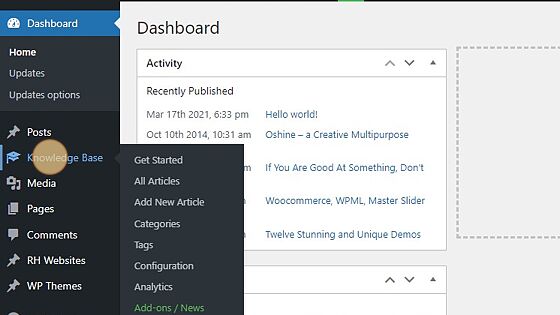
Screenshot of: Click "Knowledge Base"

3. Click this dropdown.

Screenshot of: Click this dropdown.

4. Click “View KB”

Screenshot of: Click "View KB"

5. Click “Renown Health Dashboard”

Screenshot of: Click "Renown Health Dashboard"

6. Click “Categories”

Screenshot of: Click "Categories"

7. Click the “Name” field.

Screenshot of: Click the "Name" field.

8. Type “KB Article [[tab]]”

9. Click this dropdown.

Screenshot of: Click this dropdown.

10. Click here.

Screenshot of: Click here.

11. Click this button.

Screenshot of: Click this button.

12. Click “Add New Article”

Screenshot of: Click "Add New Article"

13. Click the “Add title” field.

Screenshot of: Click the "Add title" field.

14. Type “How to Add A Knowledge Base Article”

15. Click “KB Article”

Screenshot of: Click "KB Article"

16. Click the “Documentation” field.

Screenshot of: Click the "Documentation" field.

17. Click the “123Formbuilder” field.

Screenshot of: Click the "123Formbuilder" field.

18. Click the “Add New Tag” field.

Screenshot of: Click the "Add New Tag" field.

19. Type “scribe [[enter]] kb [[enter]]”

20. Click this button.

Screenshot of: Click this button.

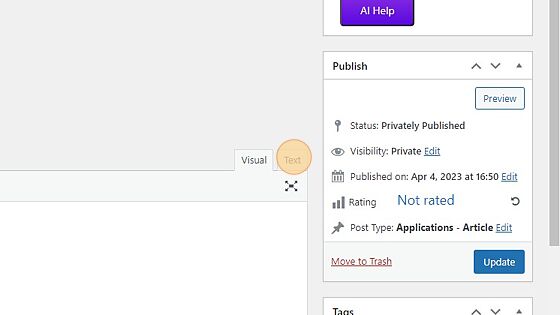
21. Click “Text”

Screenshot of: Click "Text"

22. Click this field.

Screenshot of: Click this field.

23. Switch to tab “Scribe | Workspace”

24. Click “Skip to main content
Skip to toolbar

Dashboard
Home
Updates
Updates options

Posts
All Posts
Add New
Categories
Tags

Knowledge Base
Get Sta…”

Screenshot of: Click "Skip to main content Skip to toolbar Dashboard Home Updates Updates options Posts All Posts Add New Categories Tags Knowledge Base Get Sta..."

25. Click “How to Access and Adjust PHP Settings in WordPress”

Screenshot of: Click "How to Access and Adjust PHP Settings in WordPress"

26. Click “Share”

Screenshot of: Click "Share"

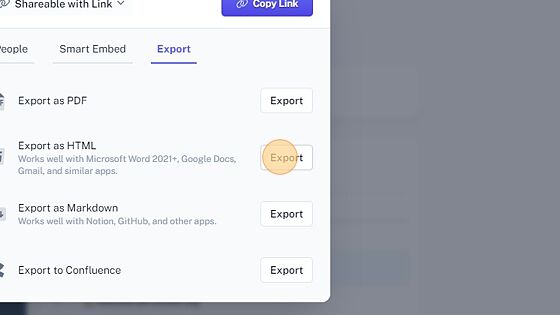
27. Click “Export”

Screenshot of: Click "Export"

28. Click “Export”

Screenshot of: Click "Export"

29. Click this field.

Screenshot of: Click this field.

30. Click “Copy to Clipboard”

Screenshot of: Click "Copy to Clipboard"

31. Click this field.

Screenshot of: Click this field.

32. Right-click this field.

Screenshot of: Right-click this field.

33. Click this button.

Screenshot of: Click this button.

34. Click “Visual”

Screenshot of: Click "Visual"

35. Click “how-to-add-a-kno…dge-base-article”

Screenshot of: Click "how-to-add-a-kno…dge-base-article"